Managing private access
Control who can view your directory with passwords, IP restrictions, or user accounts
Accessing private access settings
- Open the edit page of your directory
- Click
Accessin the menu bar
From here you can configure how visitors access your directory using one of three authentication types.
Authentication types
Your directory supports three authentication types to control access:
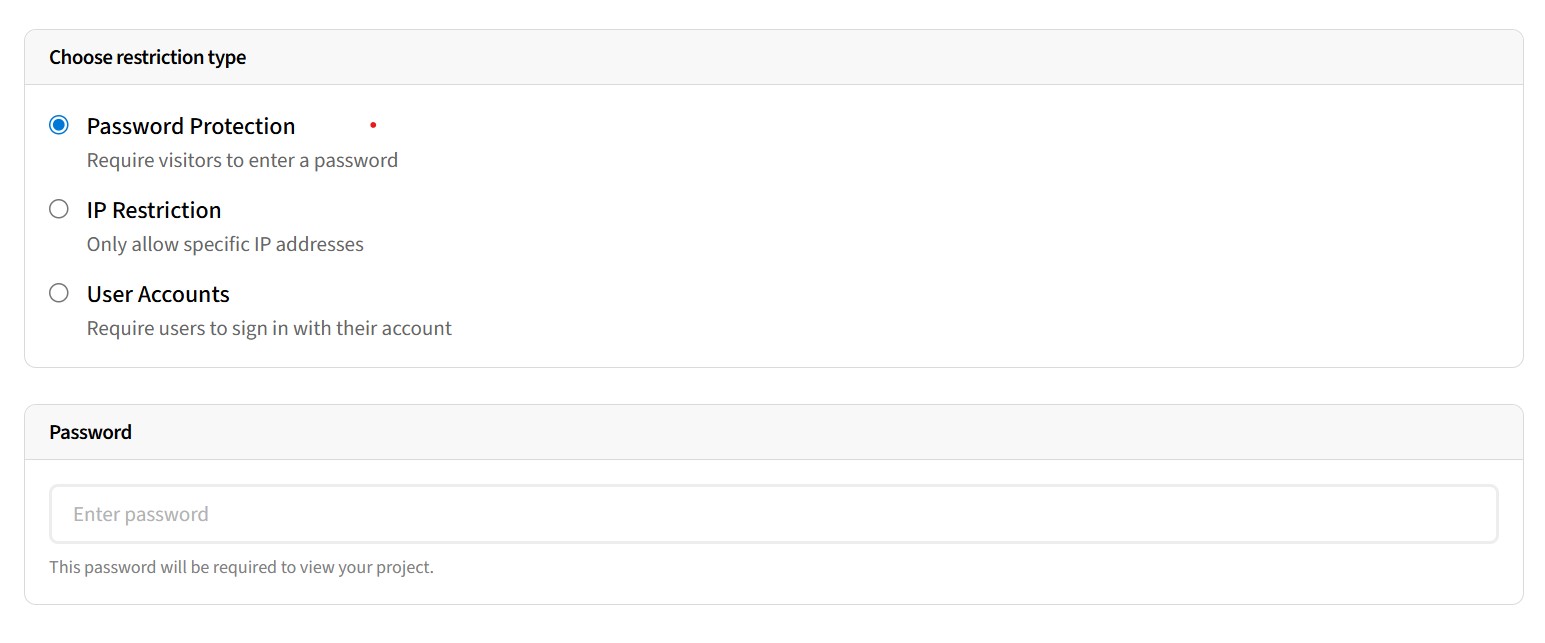
Global password
Protect your entire directory with a single shared password. Anyone with the password can access all content.
- Simple way to prevent public access
- No user management required
IP restriction
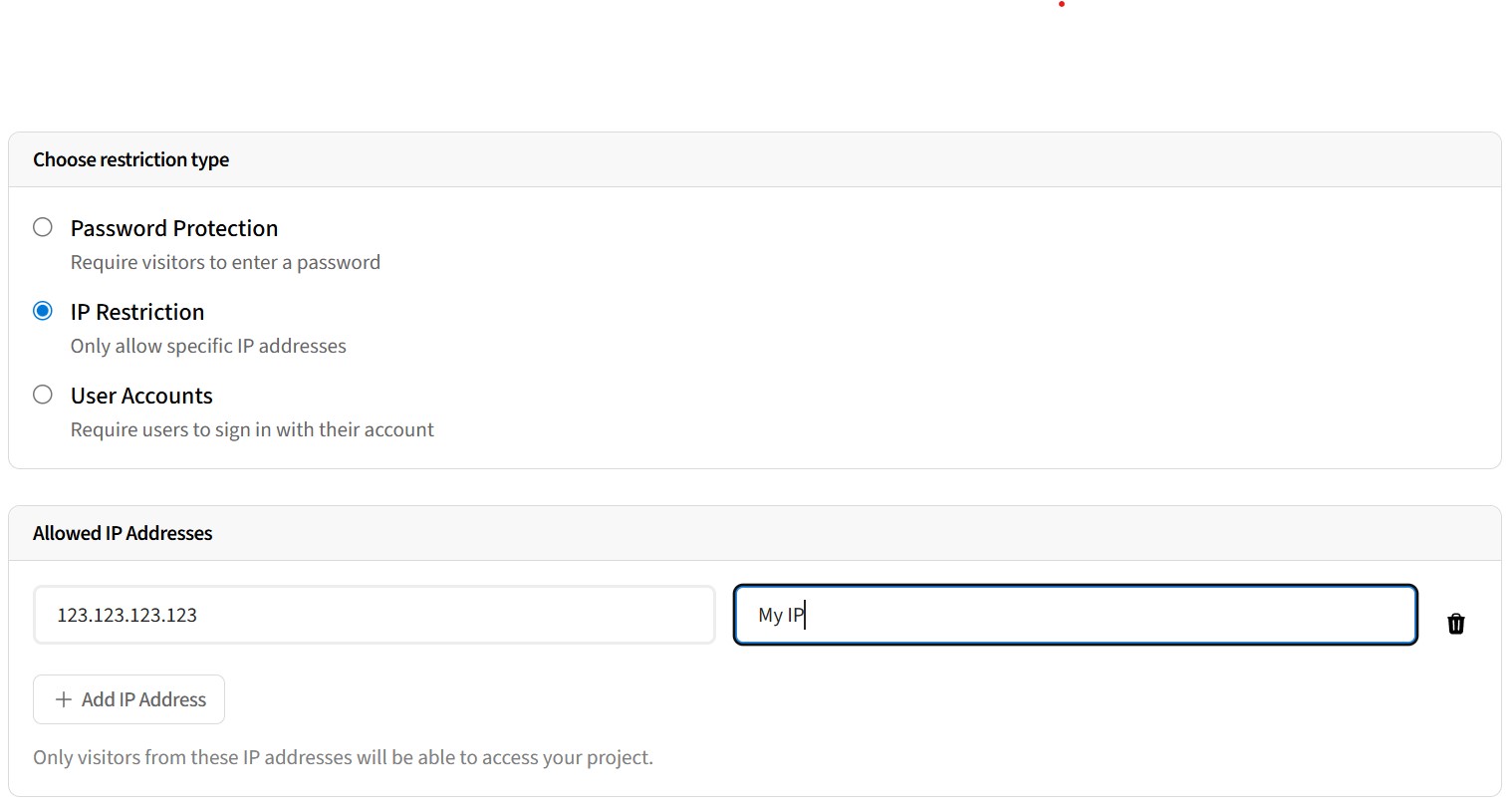
Restrict access to specific IP addresses. Visitors from allowed IPs can view content without signing in.
- No passwords or accounts needed
- Perfect for office networks or known locations
User accounts
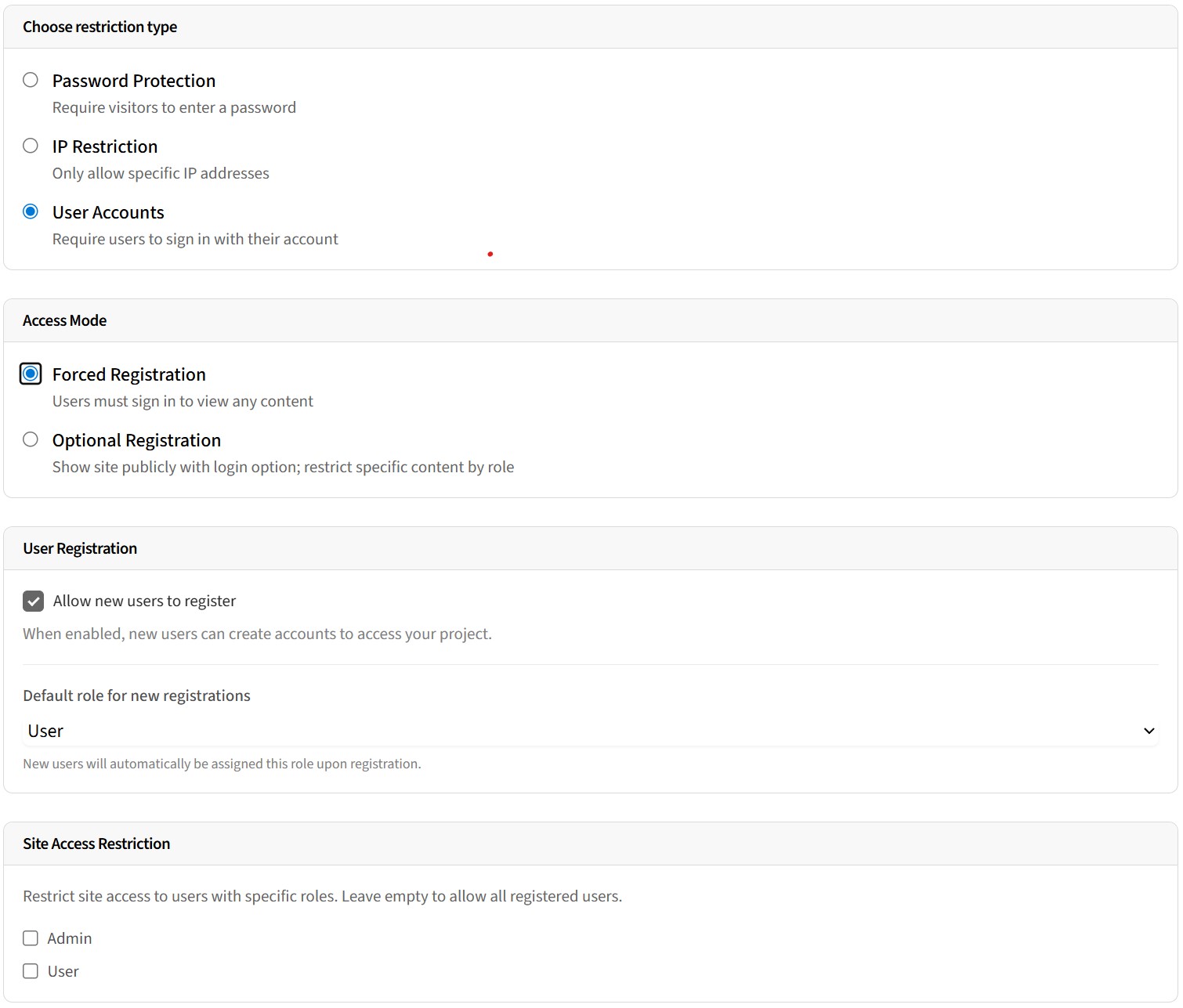
Require visitors to register and sign in with their own account. Offers Role-based access control.
User account access modes
When using user accounts authentication, you can choose from two access modes:
Optional registration
Content is public by default, but you can restrict specific content to registered users with certain roles.
Use the Default Content Access section to define which roles are required to view listings, categories, and pages by default. You can then override these defaults on individual items.
Forced registration
Users must sign in to view any content on your directory.
Use the Site access restriction section to define which roles can enter the site. Only users with one of the selected roles will be able to access any content.
User registration settings
When using user accounts, the User registration section on the Access page lets you configure:
- Default registration role - The role automatically assigned to new users when they register. This gives all new users a base level of access.
- Whether registration is possible - in most cases you'll want to allow users to register/create their own accounts but you also have the ability to disable this. Once disabled, only users you manually create from the admin area will have access.
Role-based content restrictions
With user accounts, you can use roles to control what each user can access:
For listings
- Open the edit page of your directory
- Click on the status indicator (coloured dot) next to any listing
- In the popover, configure the role access settings
- Click
Applyto save your changes
For categories and pages
- Navigate to
CategoriesorPagesfrom your directory - Edit the item you want to restrict
- Find the
Role accesssection - Select which roles can view this content
What visitors see when restricted
When a visitor doesn't have access to content, they'll see a friendly message prompting them to sign in or contact the directory owner. The content title remains visible, but the details are hidden.
Related guides
- Managing users - Learn how to view and manage registered users
- Managing roles - Create and configure roles for access control