Viewing payments
Track payments, subscriptions, and revenue from your monetization products
Overview
The Payments page provides a comprehensive view of all transactions for your directory, including one-time payments and subscription activity. Use this to track revenue, monitor subscription health, and manage billing issues.
Accessing the payments page
- Open the edit page of your directory
- Click
Settingsin the menu bar - Select
Monetization, then clickPayments
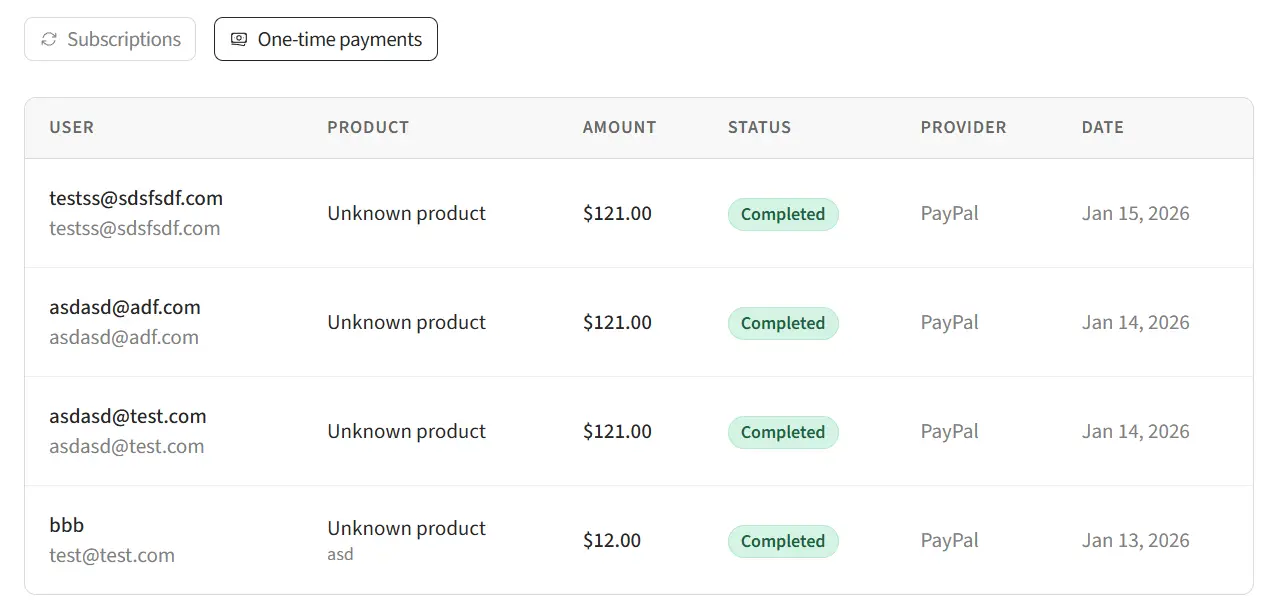
Understanding the payments list
The payments list shows all transactions with the following information:
Columns
- User - The user who made the payment
- Product - What they paid for (with listing title if applicable)
- Amount - Payment amount in your configured currency
- Status - Payment status (Completed, Pending, Failed, Refunded)
- Provider - Stripe or PayPal
- Date - When the payment was made
Product column details
The product column shows:
- For listing payments: Product name + listing title on the second line
- For account payments: Product name + "Account access" on the second line
Payment statuses
Completed
Payment was successful. For one-time payments, the product is delivered. For subscriptions, the billing period is active.
Pending
Payment is being processed. This is typically brief but may occur with some payment methods.
Failed
Payment was declined or failed. The user did not receive the product. They can retry with a different payment method.
Refunded
Payment was refunded through the payment provider. The product access has been revoked.
Viewing subscriptions
The subscriptions tab shows all active and past subscriptions:
- User - The subscriber
- Product - The subscription product (with listing title if applicable)
- Status - Active, Past Due, Cancelled, or Expired
- Current period - Start and end dates of the current billing period
- Provider - Stripe or PayPal
Subscription statuses
Active
Subscription is current and will renew automatically. User has full access to the product.
Past Due
A renewal payment failed. The payment provider will retry. User typically retains access during the retry period.
Cancelled
User or admin cancelled the subscription. Access continues until the end of the current billing period.
Expired
Subscription has ended (after cancellation or final payment failure). User no longer has access to the product.
What happens when a subscription expires depends on the product type. See the subscription lifecycle section for each product:
Managing payments through providers
Some actions must be performed directly in your payment provider's dashboard:
Refunds
To refund a payment, log in to your Stripe or PayPal dashboard and process the refund there. The webhook will automatically update the payment status in your directory.
Cancelling subscriptions
Subscriptions can be cancelled from the provider dashboard. Users can also cancel their own subscriptions through their account settings (if enabled).
Payment disputes
Handle disputes and chargebacks through your payment provider's dispute resolution process.
Troubleshooting payment issues
Payment not appearing
- Check that webhooks are configured correctly
- Verify the webhook endpoint is accessible
- Check the payment provider dashboard for the transaction
Subscription status not updating
- Ensure webhooks are synced for your current provider
- Check webhook delivery logs in your provider dashboard
- Re-sync webhooks from
Settings>Monetization
User reports payment completed but no access
- Check the Payments page for their transaction
- Verify the payment status is "Completed"
- Check the user's subscription status if applicable
- Check your payment providers dashboard
- Contact support with your findings
Related guides
- Monetization settings - Configure payment providers and webhooks
- Managing products - Create and manage products
- Managing users - View user details and payment status